Overview

Ansa is ideal for customer support teams who want to:
  • Deflect repetitive questions with instant, accurate answers
  • Escalate complex issues to human agents seamlessly
  • Build a growing knowledge base from real support interactions
  • Provide 24/7 support without scaling headcount
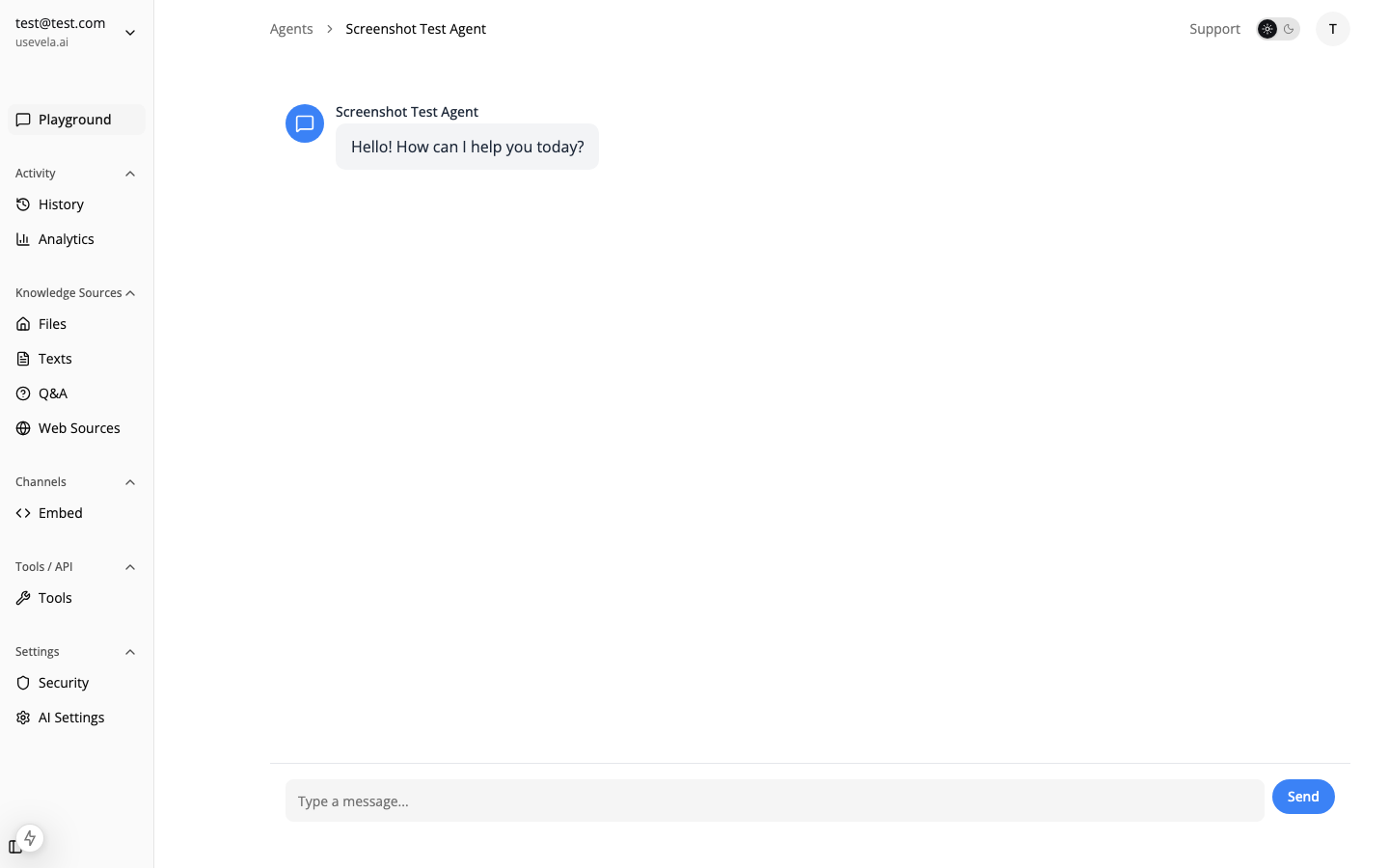
Customer support chat

1. Knowledge Base Setup

Index your existing help documentation to give your agent comprehensive knowledge: Recommended sources:
  • Help center articles (web crawl or upload)
  • FAQ documents
  • Product documentation
  • Troubleshooting guides
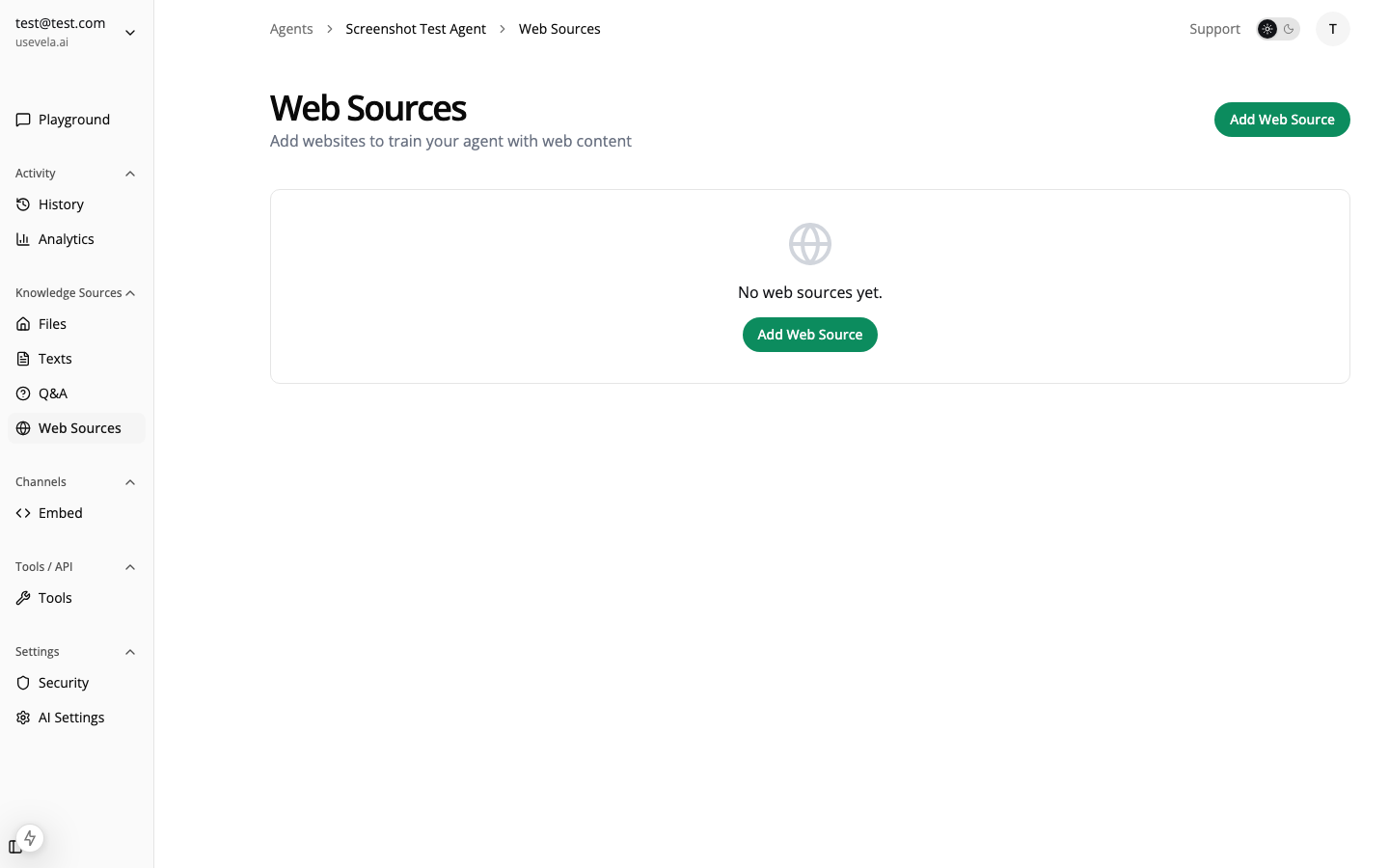
Web sources configuration
Use the auto-detect feature during onboarding to automatically discover and index your help pages. Ansa will probe common paths like /help, /support, /faq, and /docs.

2. Agent Settings

SettingRecommended ValueWhy
ModelClaude 3.5 Sonnet or GPT-4oBest balance of accuracy and speed
Temperature0.3 - 0.5Lower temperature for more consistent, factual responses
System PromptInclude tone, escalation rules, and boundariesSee example below
Example System Prompt:
You are a helpful customer support agent for [Company Name].

Your role:
- Answer questions accurately based on the knowledge base
- Be friendly, professional, and concise
- If you don't know the answer, say so honestly
- For billing issues, account access, or complex technical problems, offer to connect the user with a human agent

Never:
- Make up information not in the knowledge base
- Share internal processes or confidential information
- Make promises about refunds or credits without escalating

3. Escalation with Confidence Thresholds

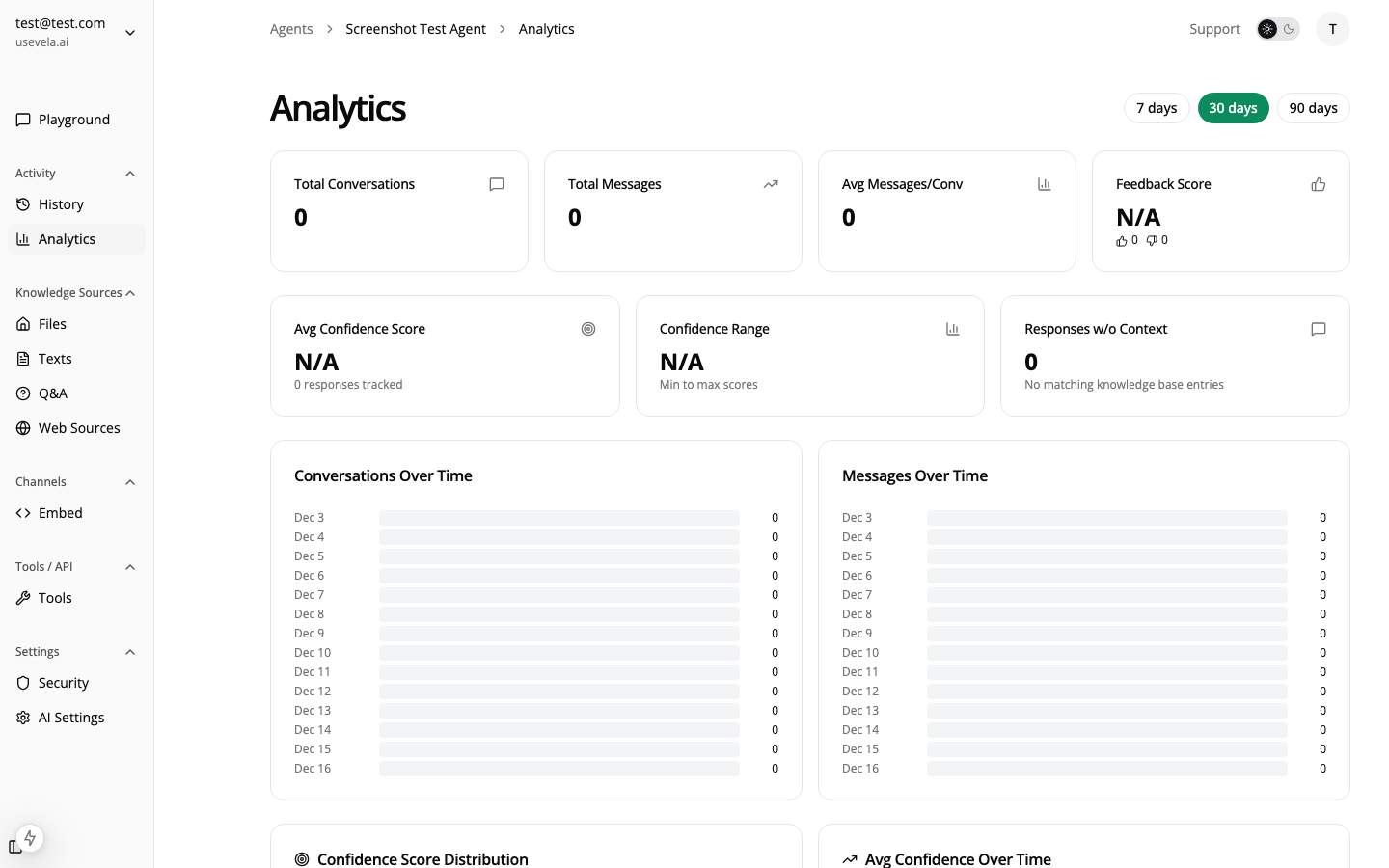
Use confidence scores to automatically escalate low-confidence responses: Analytics showing confidence scores
Confidence LevelAction
High (80%+)Respond automatically
Medium (50–79%)Respond but offer human escalation
Low (below 50%)Show contact form or escalate immediately

4. Escalation Form Tool

Create a form tool for human escalation:
{
  "name": "contact_support",
  "description": "Use this when the user needs human assistance, has a billing issue, or when you cannot answer their question confidently.",
  "executionType": "form",
  "formSchema": {
    "fields": [
      { "name": "email", "label": "Email", "type": "email", "validation": { "required": { "value": true, "message": "Email is required" } } },
      { "name": "issue", "label": "Describe your issue", "type": "textarea" }
    ],
    "submitLabel": "Contact Support",
    "successMessage": "We've received your request. A support agent will reach out within 24 hours."
  },
  "formPostActions": [
    { "type": "email", "recipientIds": ["support-team-user-id"], "subject": "Support Escalation" },
    { "type": "slack", "webhookUrl": "https://hooks.slack.com/...", "messageTemplate": "🚨 New escalation from {{email}}: {{issue}}" }
  ]
}

5. Widget Triggers

Set up proactive engagement to help users before they get frustrated:
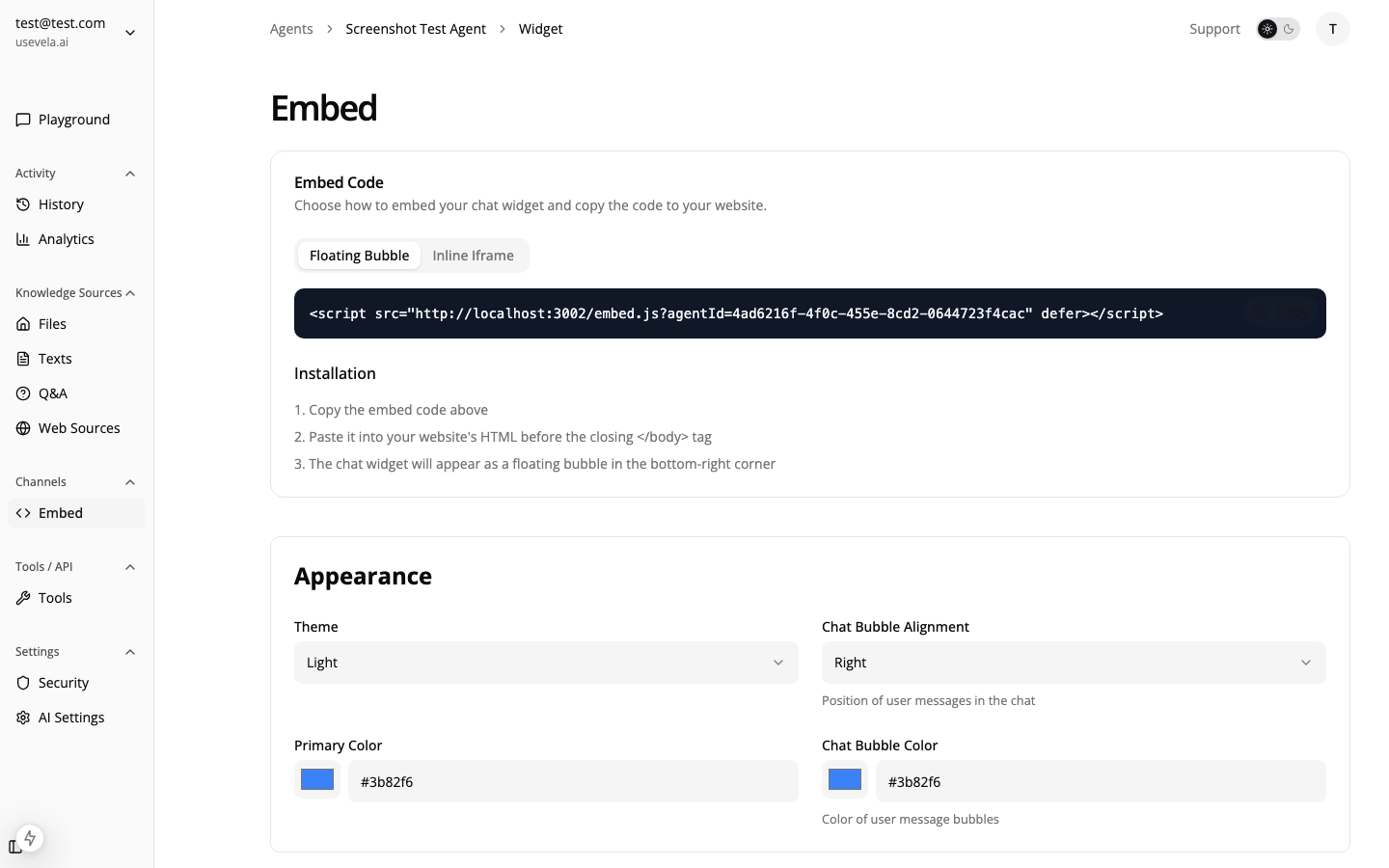
TriggerWhenAction
Time on support page30 seconds on /help/*Open chat with “Need help finding something?”
Scroll depth75% scroll on troubleshooting articleShow bubble “Still having issues?”
Exit intentAbout to leave support pageShow form for feedback
Widget builder

Email Channel for Async Support

Enable the email channel to handle support emails with AI:
  1. Forward support emails to your agent’s inbound address
  2. Set confidence threshold (recommended: 70%)
  3. Configure low-confidence action to “forward” to human reviewers
  4. Enable Auto Learn to automatically create Q&A entries from human responses
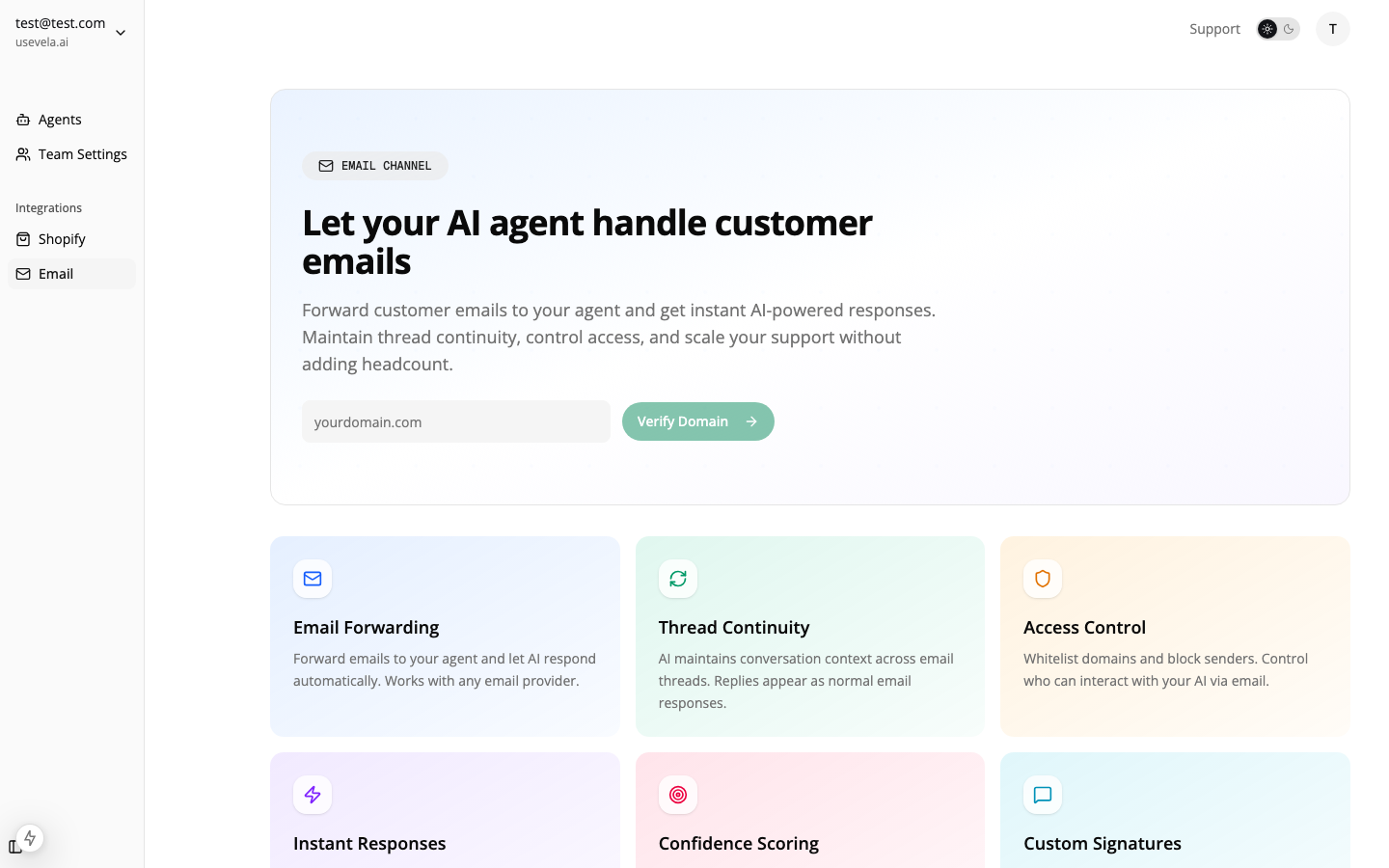
Email channel settings

Monitoring & Improvement

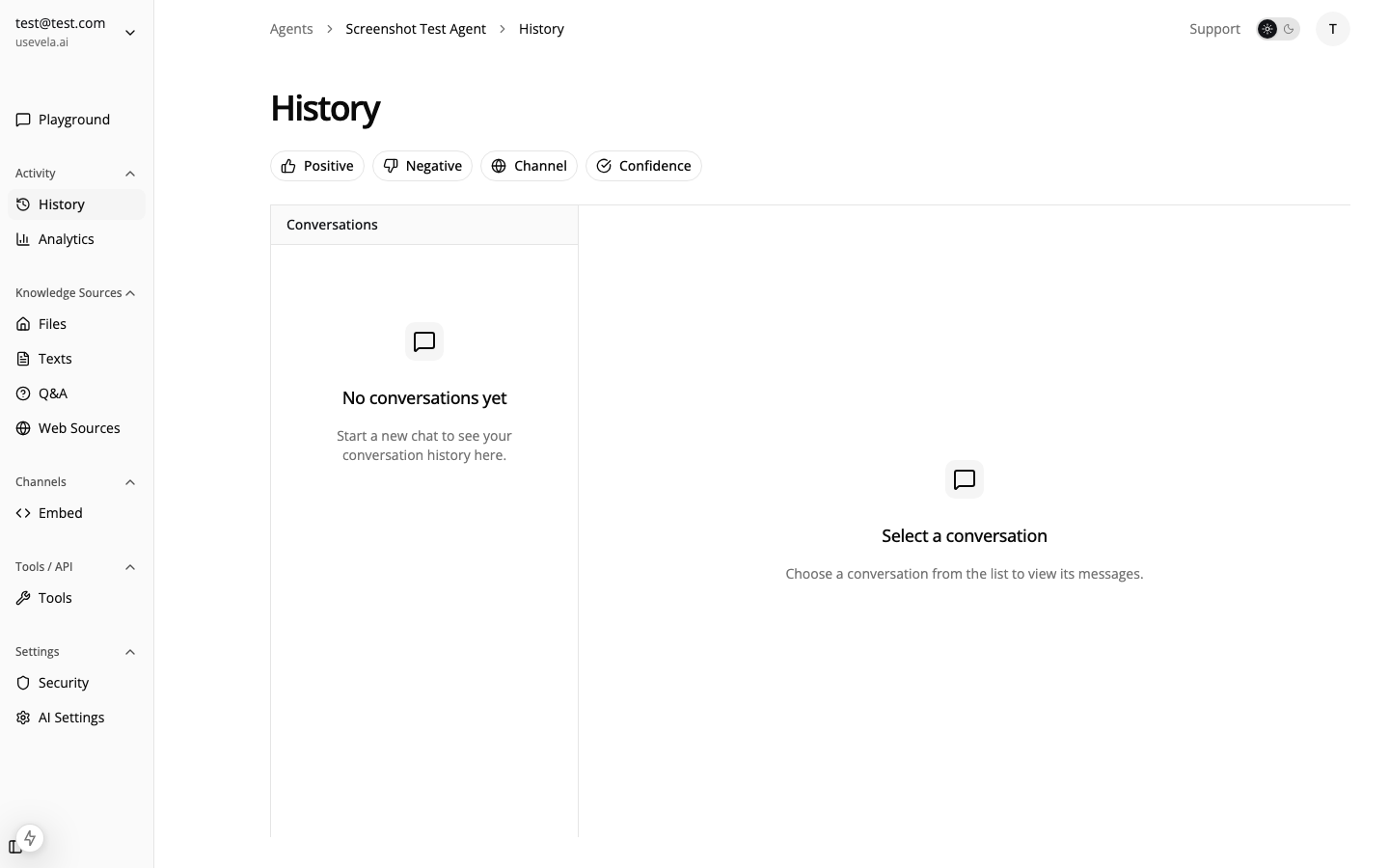
Review Conversation History

Regularly review conversations to identify:
  • Common questions that need better documentation
  • Low-confidence responses that need knowledge base updates
  • Patterns in escalated issues
Conversation history

Track Key Metrics

Monitor these analytics:
  • Average confidence score — Target 75%+
  • Escalation rate — Track form submissions vs. resolved chats
  • Response quality — Review feedback ratings

See Also